Monday, December 12, 2016
Picsart Add Color Tutorial By AKASH SHAKY
Picsart Add Color Tutorial By AKASH SHAKY
Add Color
In this tutorial, we’ll show you how to use PicsArt’s drawing tools to add color to your black and white photos.
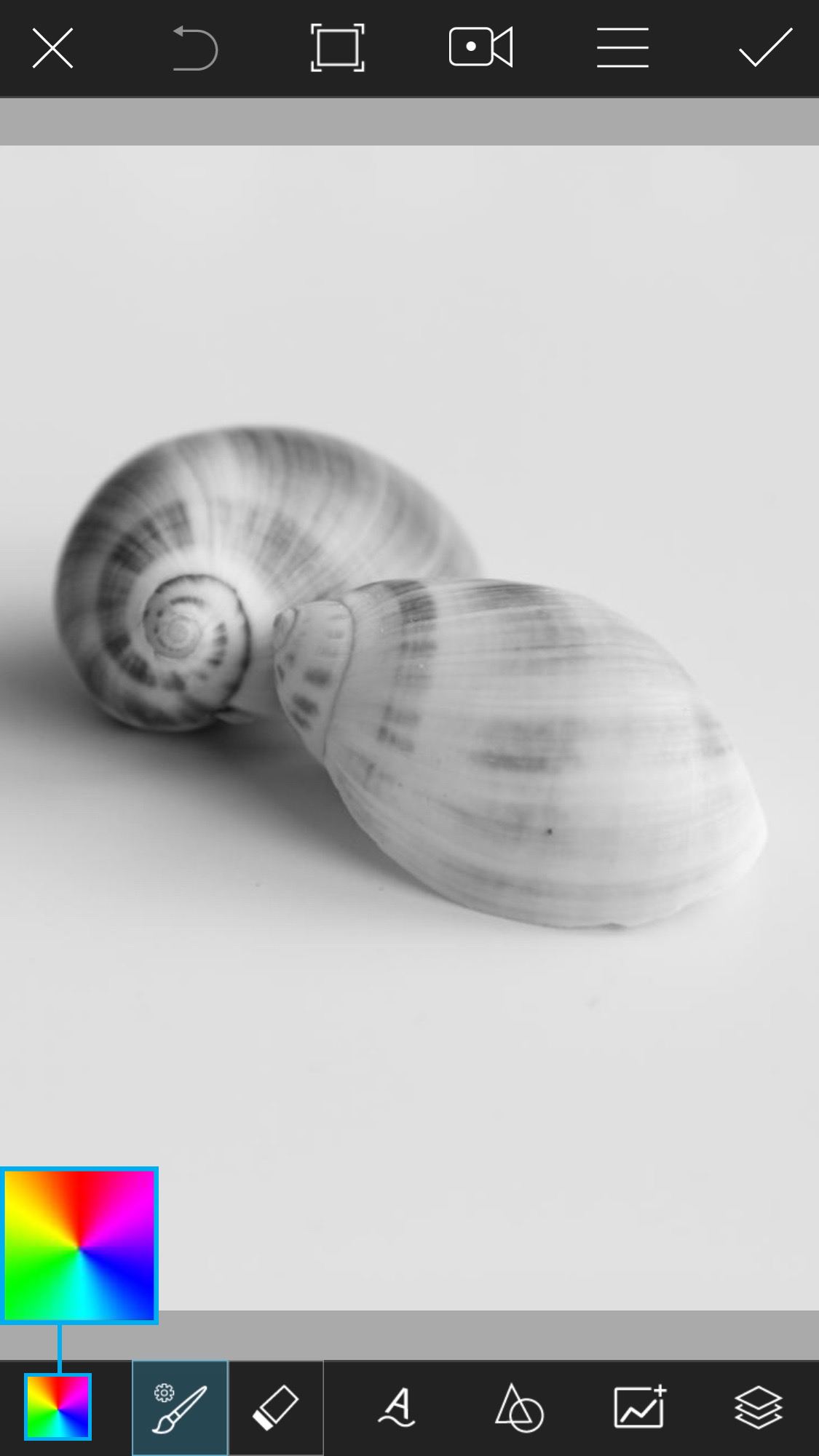 | Step 1Open a black and white photograph in Draw (any photo will work, but we chose one with a simple composition). Tap on the colorful square to open the Color Chooser. |
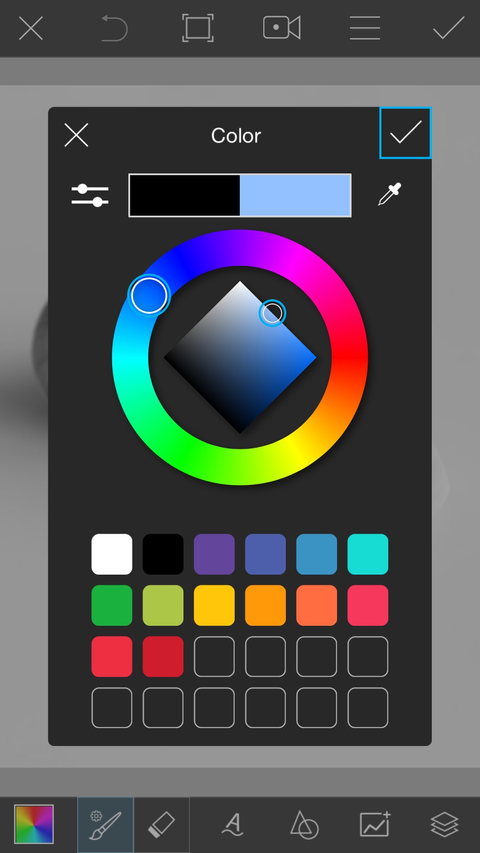 | Step 2Select a light blue color and tap on the check mark to confirm. |
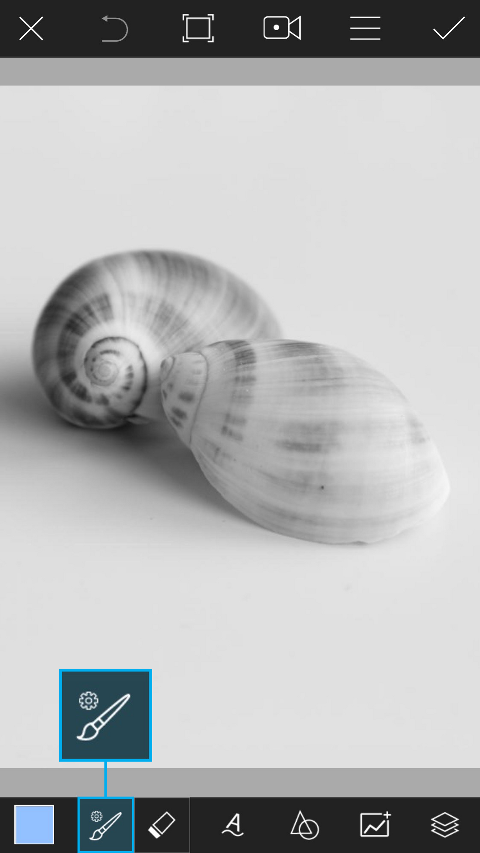 | Step 3Tap on the paintbrush icon to open the brush settings menu. |
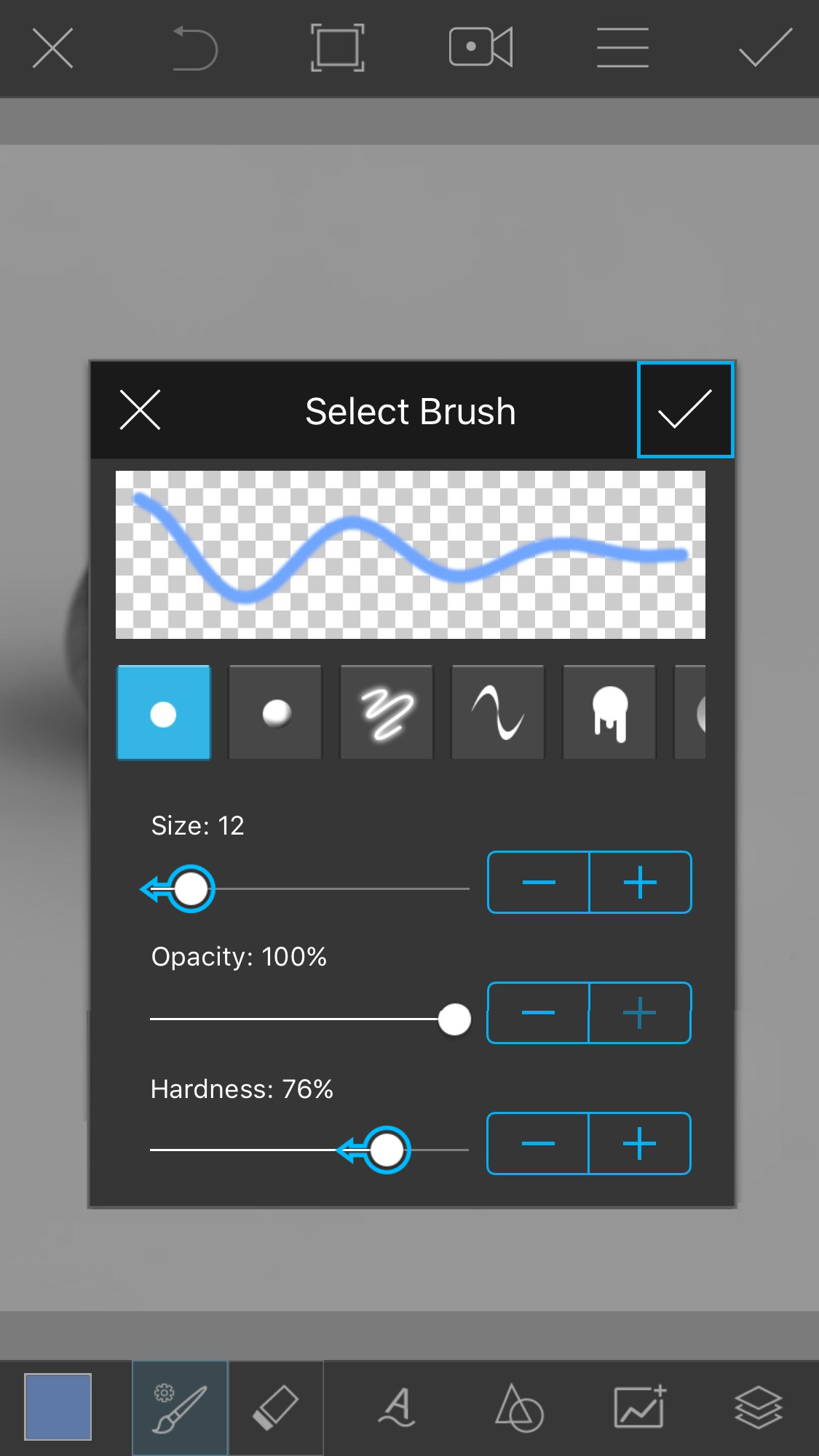 | Step 4Select the first brush. Use the Size slider to reduce the size. Use the Hardness slider to slightly reduce the hardness. Tap on the check mark to confirm. |
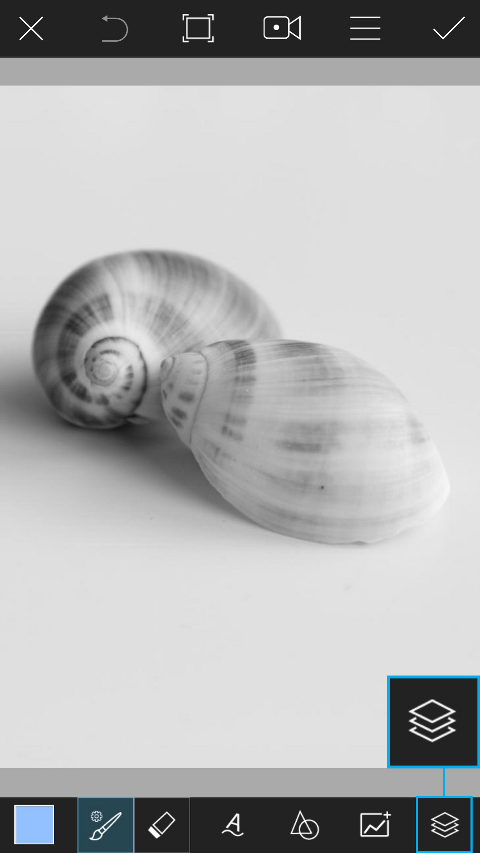 | Step 5Tap on the layers icon to open the layers drawer. |
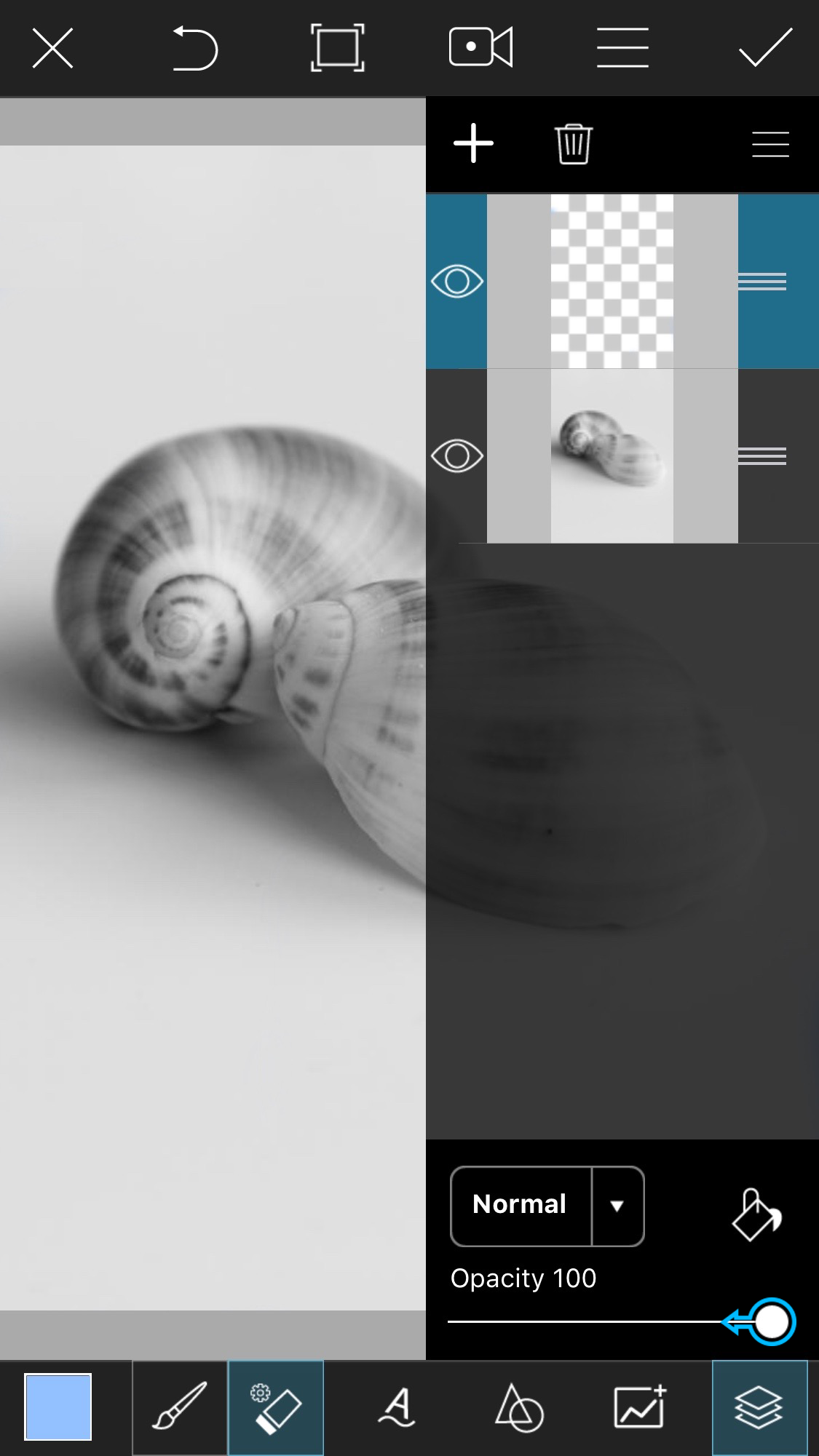 | Step 6With the top layer selected, use the slider to reduce the opacity. This will allow you to paint on a semi-transparent layer, so your photograph won’t disappear as you paint over it. |
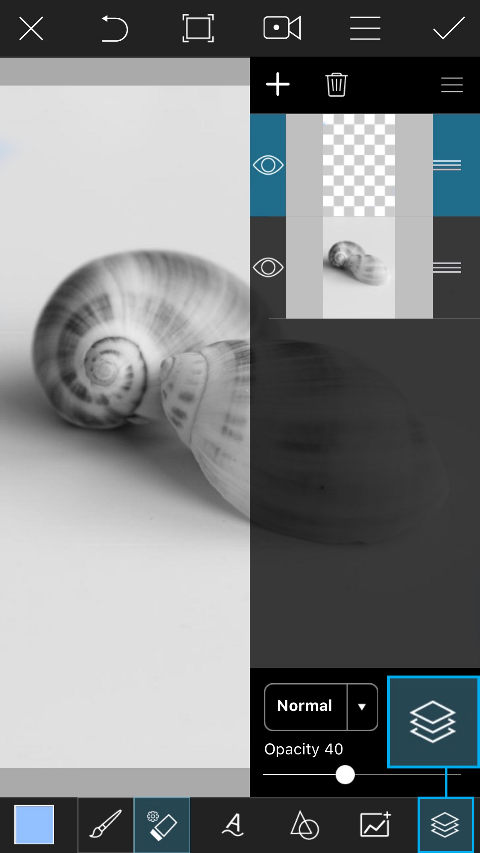 | Step 7Tap on the layers icon to close the layers drawer. |
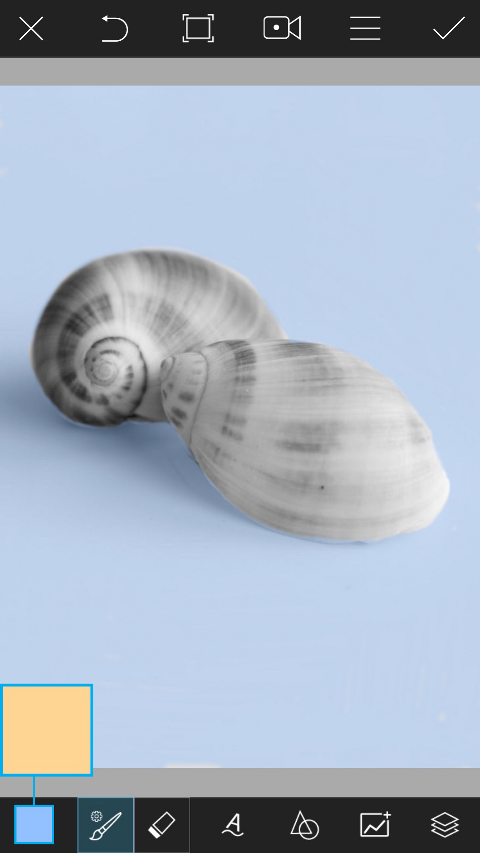 | Step 8Use your finger or stylus to color in the background. Tap on the square in the bottom left corner to open the Color Chooser. Switch to a light orange color. |
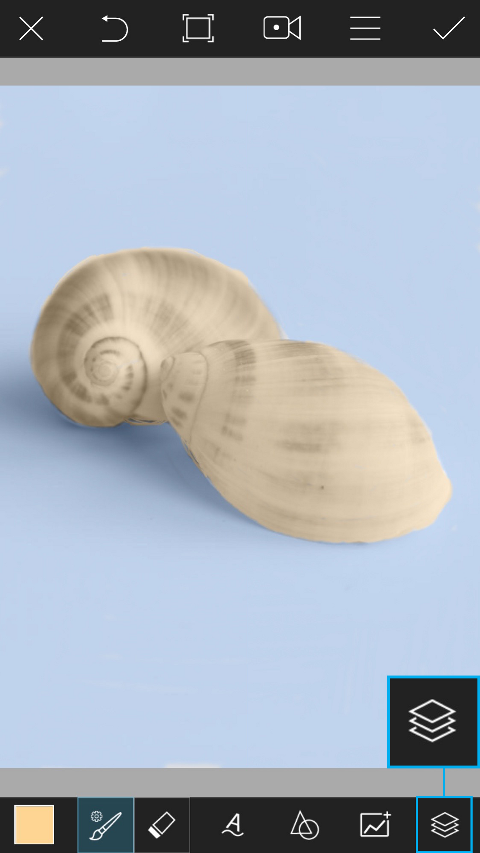 | Step 9Color in the shells. Tap on the layers icon to open the layers drawer. |
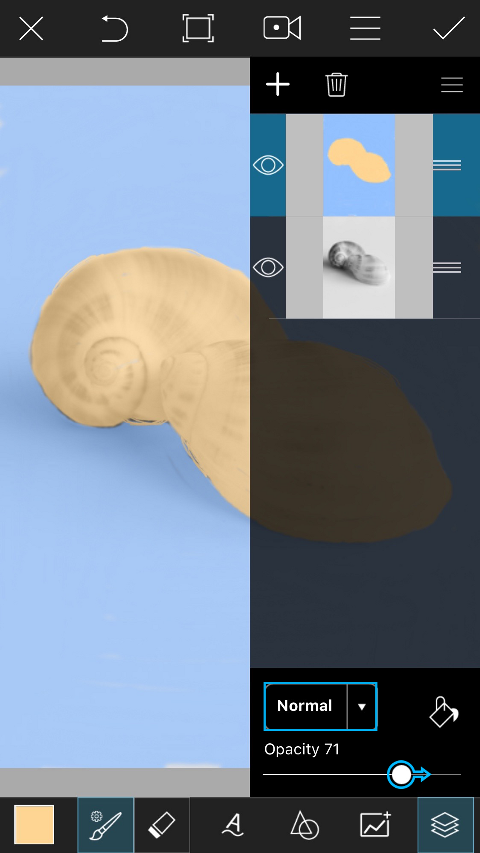 | Step 10Use the slider to increase the opacity of your top layer to about 70%. Tap on “Normal” to view your blending mode options. |
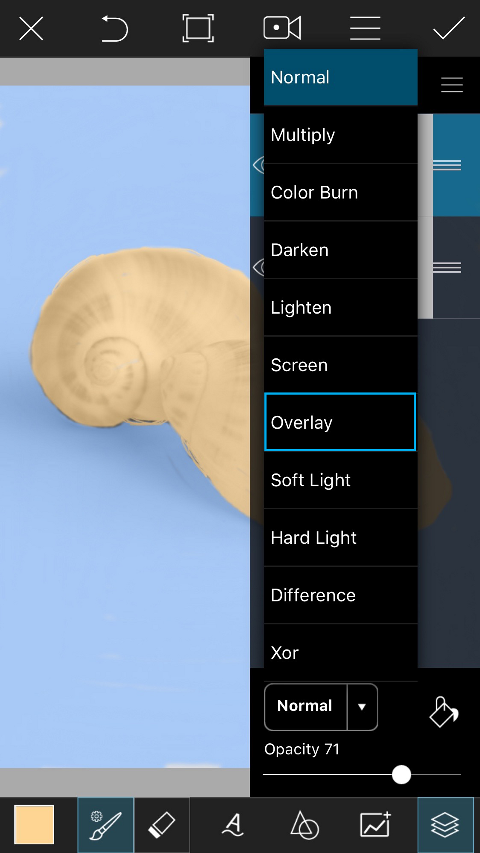 | Step 11Select the “Overlay” blending mode. |
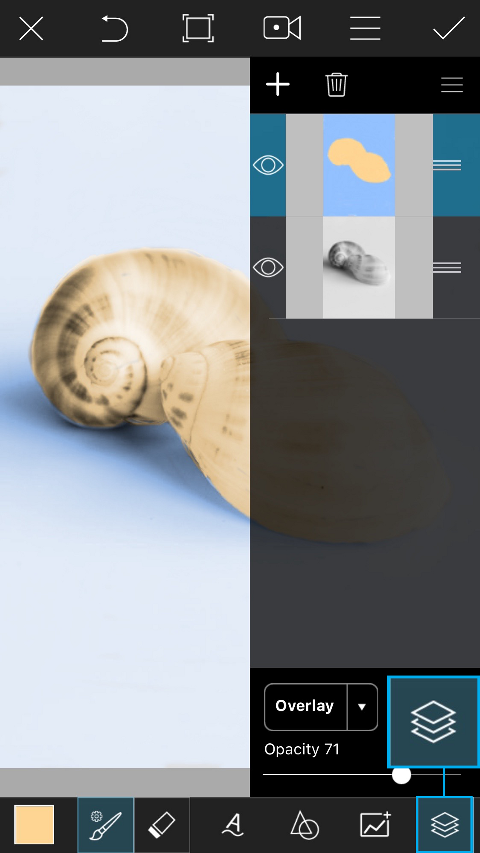 | Step 12Tap on the layers icon to close the layers drawer. |
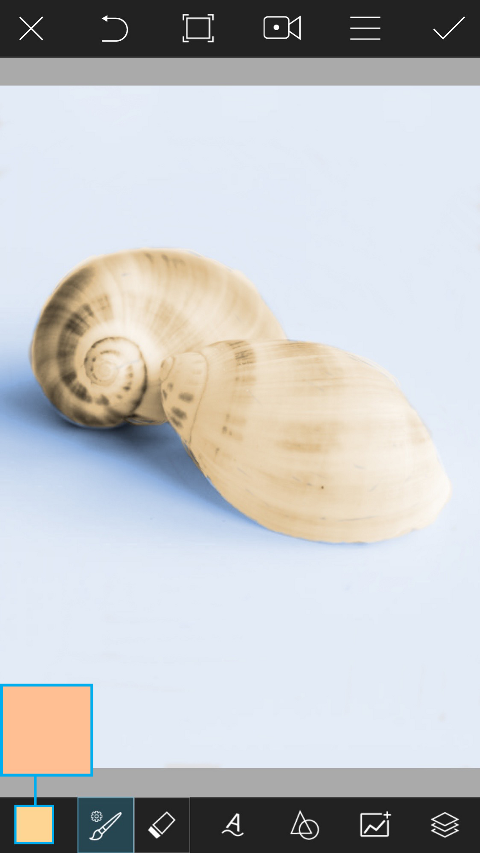 | Step 13Tap on the square in the bottom left corner to open the color chooser. Switch to a darker orange color. |
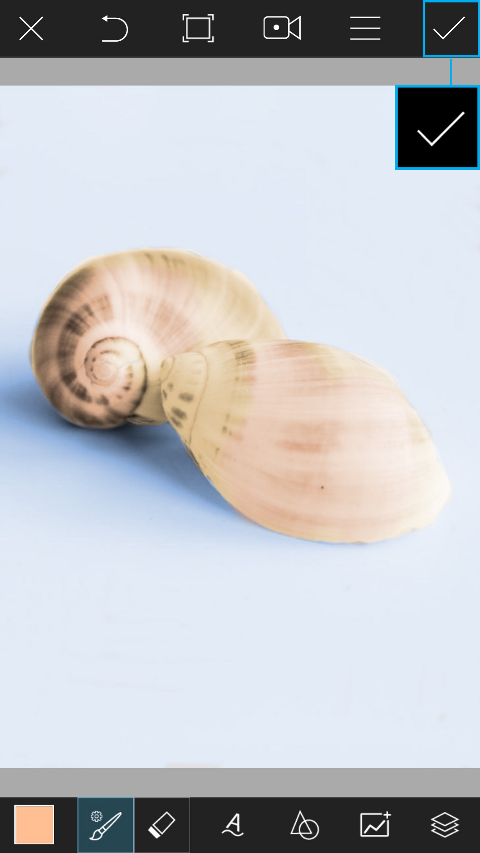 | Step 14Use your finger or stylus to add some color variation to the shells. Tap on the check mark to close your image in Draw. Your image will automatically be opened in the photo editor. |
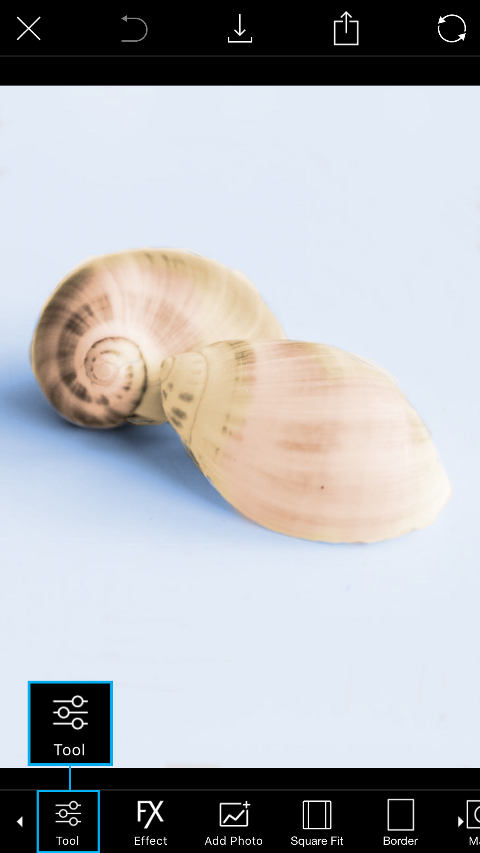 | Step 15Tap on Tool to open the Tool menu. |
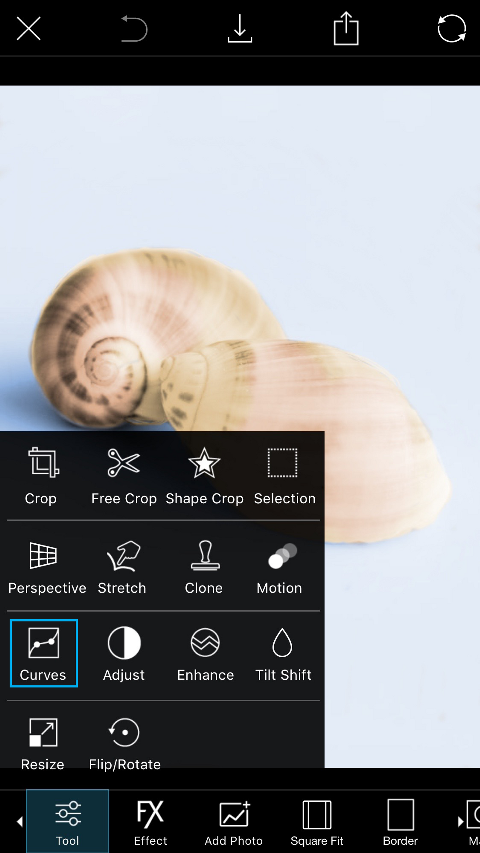 | Step 16Select the Curves Tool. |
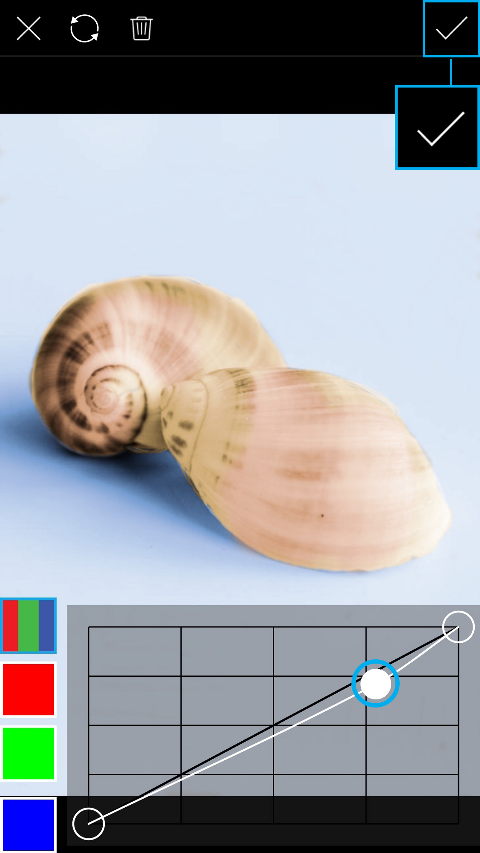 | Step 17The RGB (red-green-blue) channel will be automatically selected, which means that you’ll be adjusting all color tones in the image. Tap on the curve to set a point and drag it down slightly. This will increase the contrast and vibrance of the image. |
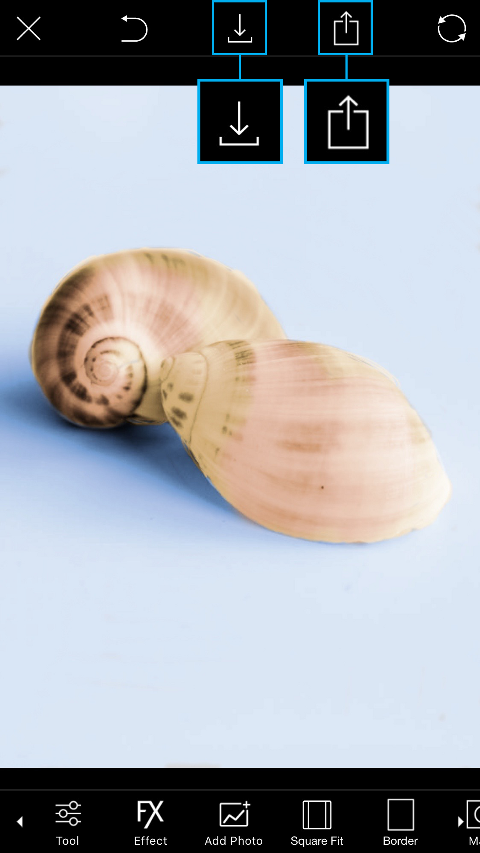 | Step 18Tap on the Save icon to save your image. Tap on the Share icon to upload your shot to your PicsArt profile. |
Get link for download
